GodwinMix Watch the overview
GodwinMix, a live video desk

One person runs several cameras and sends the show to every destination at once, and the picture keeps going when a camera fails.

Every camera, phone, guest, web page and clip shows in one window, in a browser or a desktop app. You put the next shot in Preview, press Take, and the programme goes out to YouTube, Facebook and anywhere else you stream to while it records on your own machine.

On air

Both films show the real product running on a laptop. The camera pictures are demo footage cut from an open Creative Commons film, played into the desk as if they were cameras.

The problem

Sunday, 9:55, and one volunteer at the back of the hall

"We go live at ten. There are two cameras, the lyrics run off a laptop, and the service has to reach YouTube and Facebook. It's me on my own most weeks.

Last month somebody stepped on a cable during the second hymn. The stream froze on one frame and stayed like that for twenty minutes, and I didn't know until someone texted me from home. Fixing it meant stopping everything and starting again, so the people watching lost the sermon."

9:55Five minutes to air
  • Two cameras and a set of lyrics that must sit over the picture
  • Two places to stream to, both expecting a steady picture
  • One person, who also has to watch the preacher's microphone
  • No warning when something breaks, and no easy way back
What you get

What the desk does for you and for the people watching

Each of these is in the product today. Where something is new this month or has only been tried on Windows, the honest scope further down says so.

Close view of the desk's Take and Cut buttons between the green edged Preview and the red edged Programme

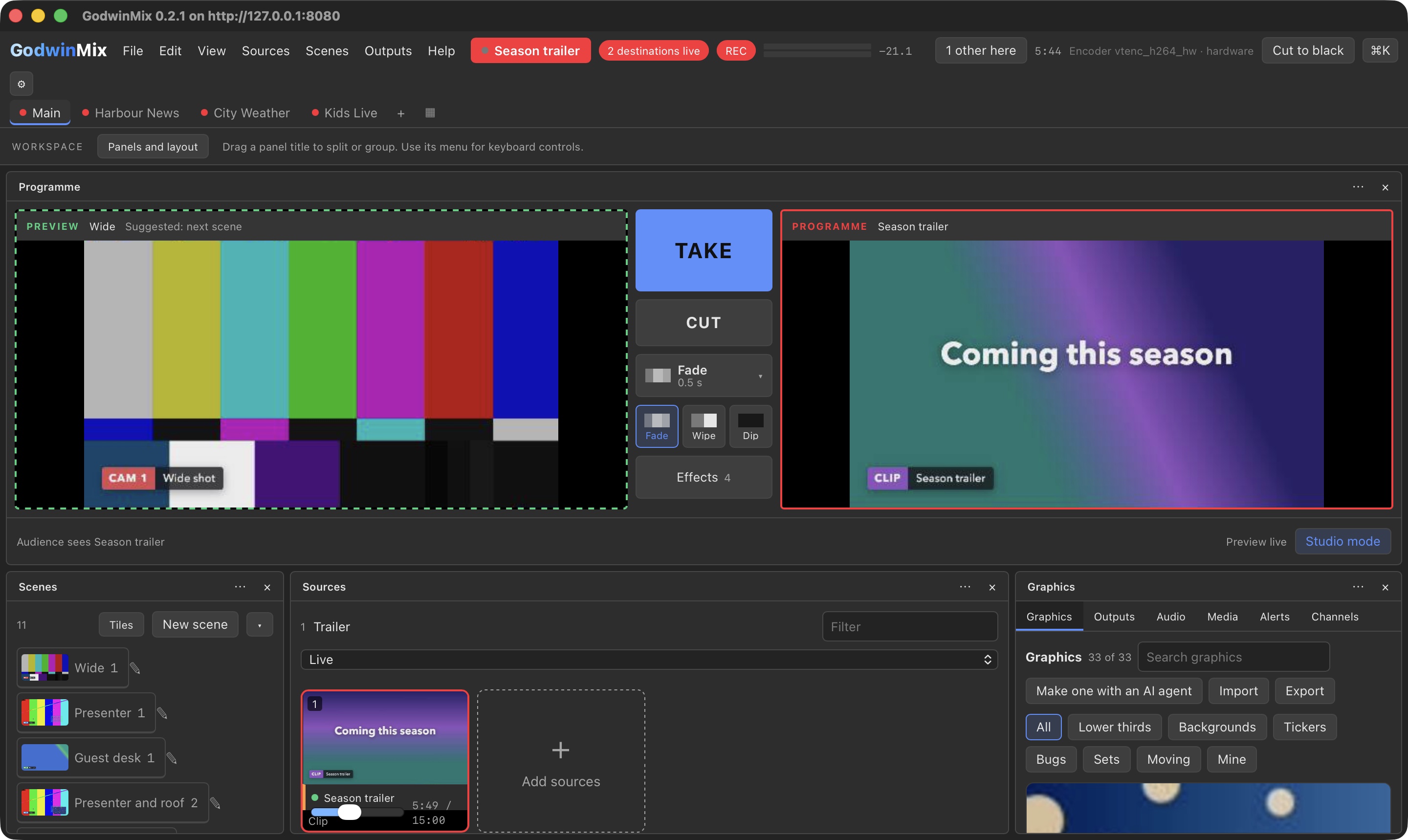
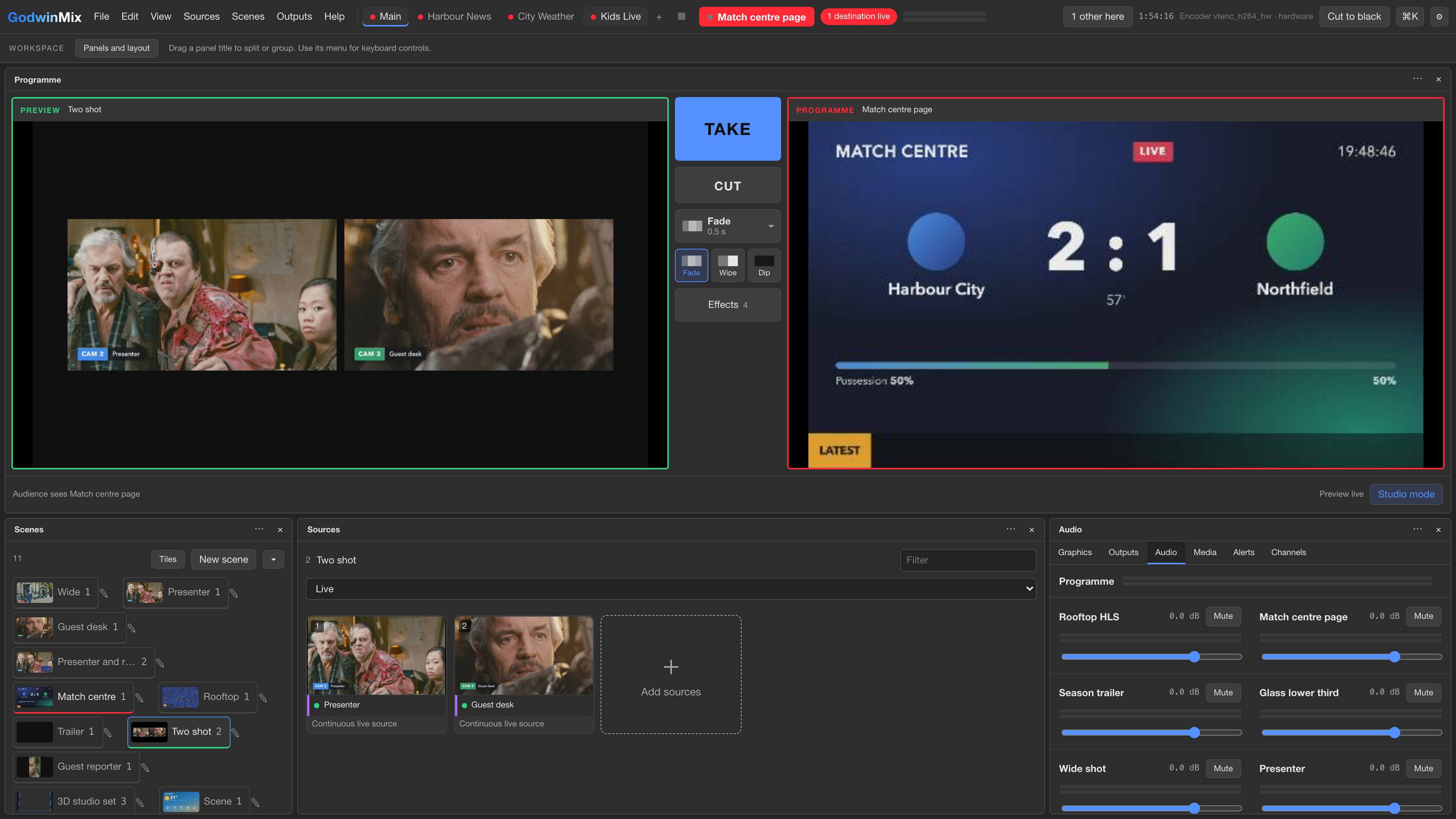
Preview, Programme, Take

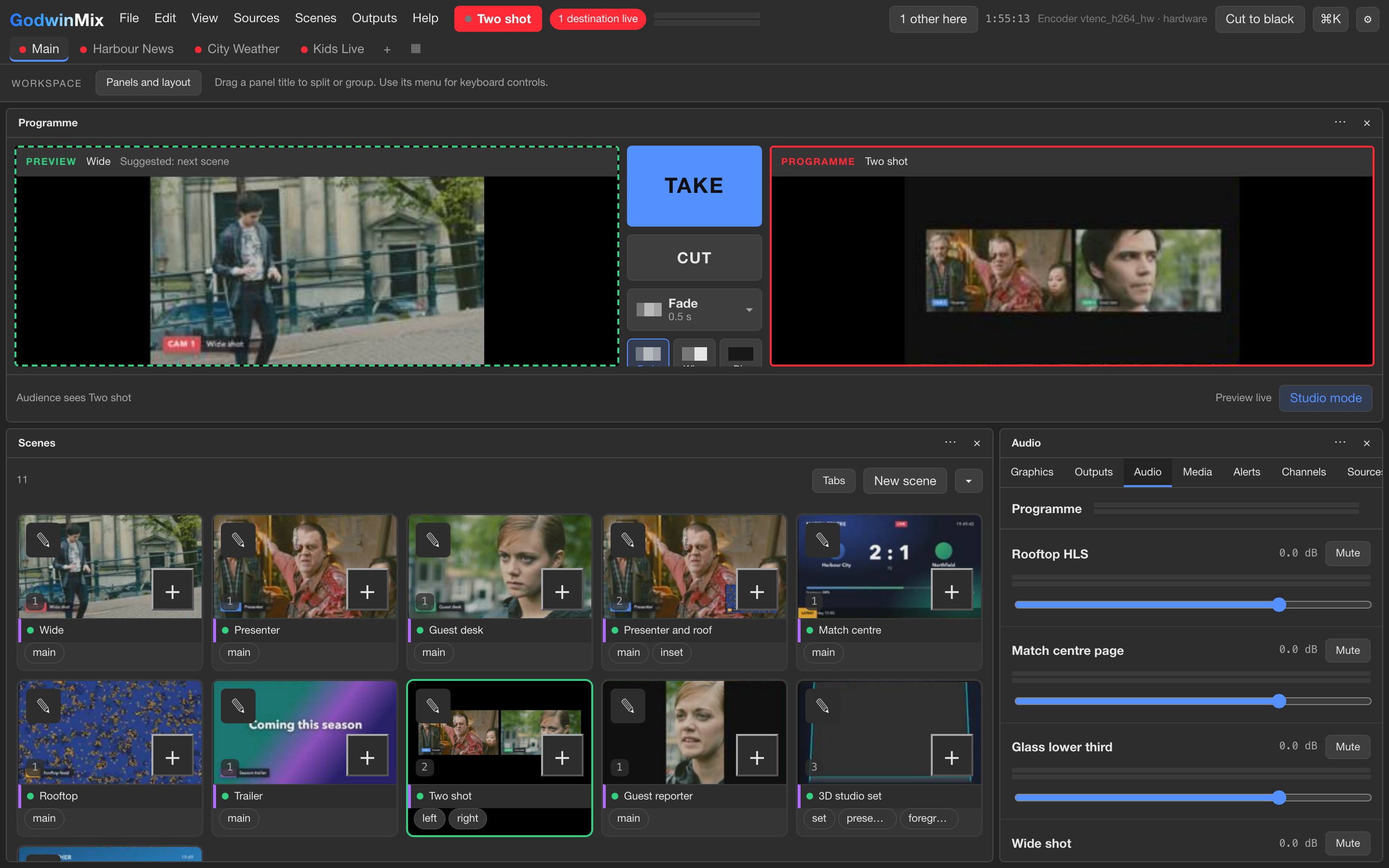
The next shot waits in Preview with a green edge while the audience watches Programme with a red one. Press Take for a smooth change or Cut for an instant one. Both buttons stay large and in the same place on a laptop, a tablet or a phone.
Scene tiles on the desk, each showing a small live picture of what it will put on air

Scenes you can see before you take them

A scene is a saved arrangement: one camera full screen, two side by side, a picture in picture, a quad, a split. Every scene tile shows a moving picture, so you choose the next shot by looking at it.

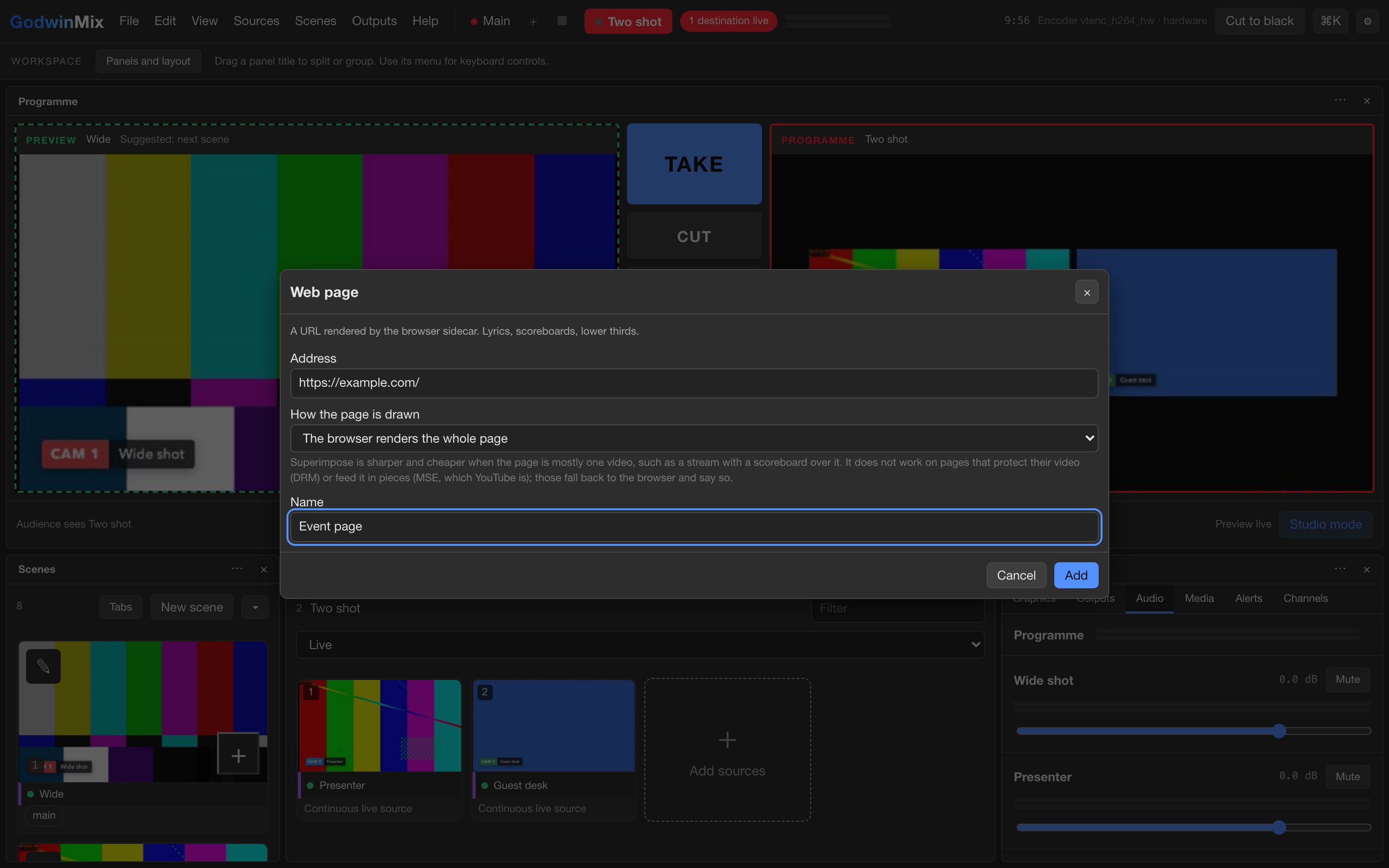
The Web page dialog, with an address box and a name box

Web pages as pictures

Paste the address of a lyrics page, a slide deck or a live scoreboard and it becomes a source like a camera, drawn by a real browser with its sound. The words your team already keeps on a website go straight on air.

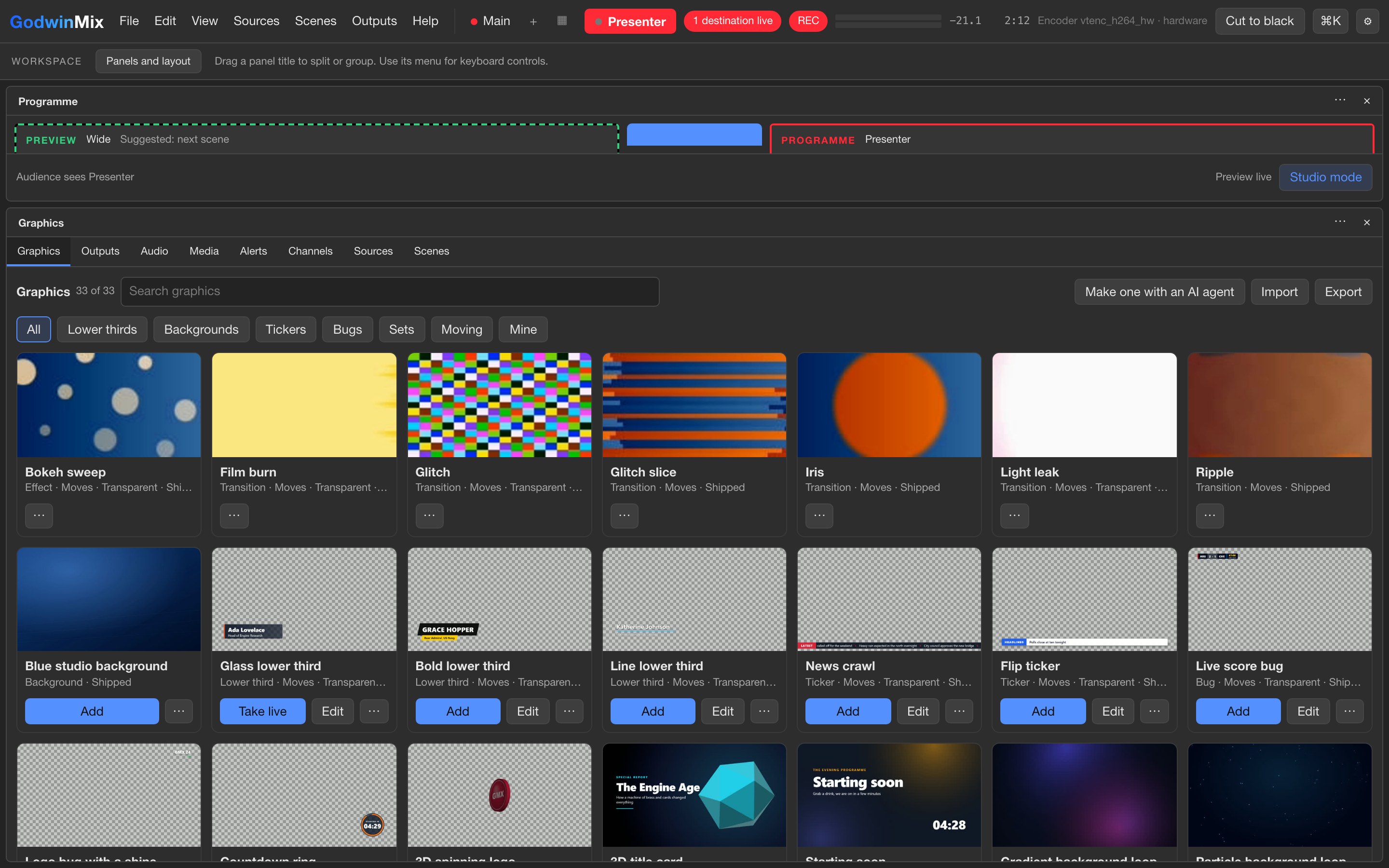
Cards in the graphics gallery: lower thirds, a news crawl, a flip ticker and a live score bug

A gallery of graphics

Name straps, tickers, score bugs, countdowns, title cards and a 3D studio set sit as cards. Add one, put it on air, change its words while it is up. A presenter can be placed in a virtual set with a green screen or with no screen at all.

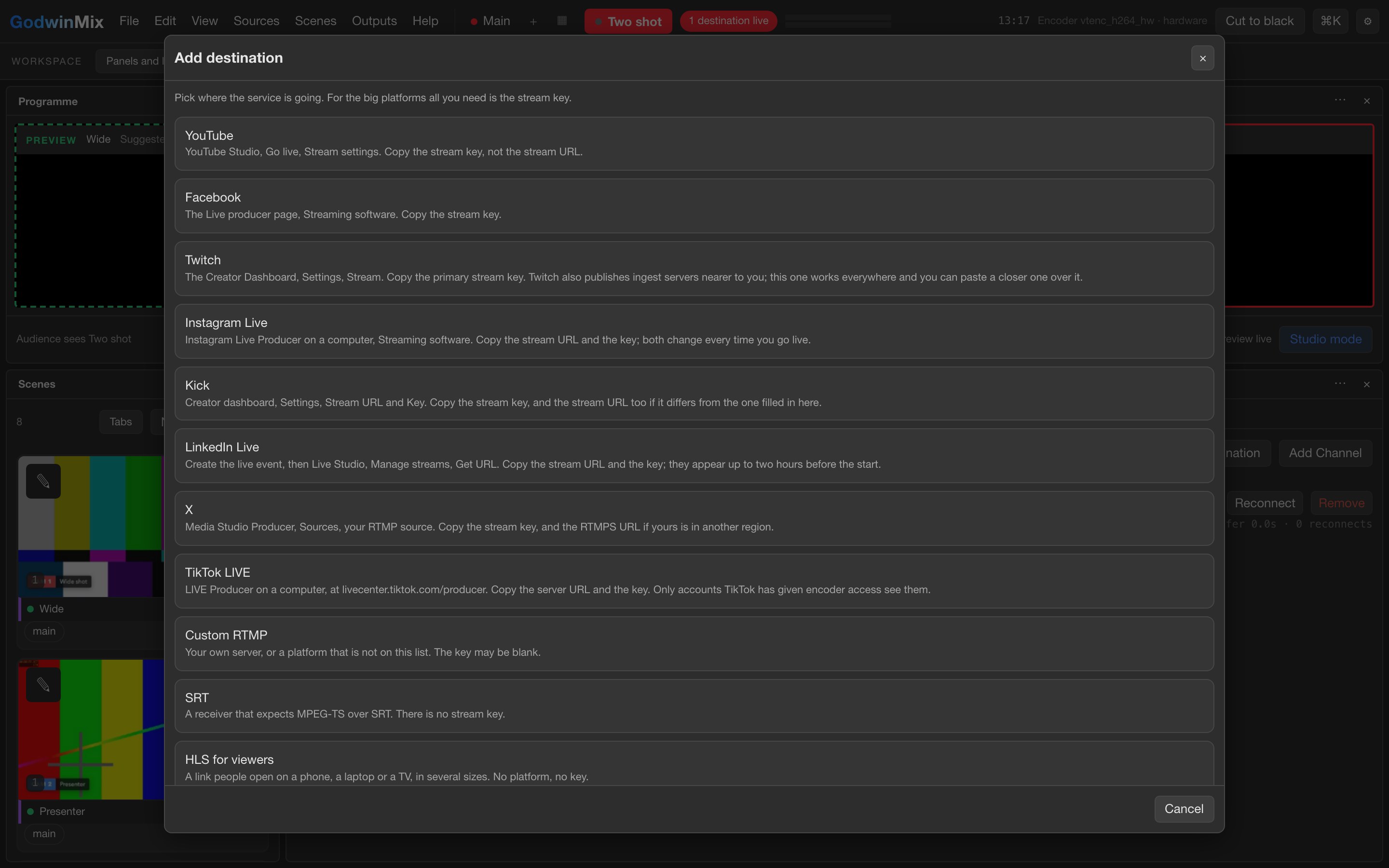
The Add destination list showing YouTube, Facebook, Twitch, Instagram Live and Kick

Several destinations, and a recording

YouTube, Facebook, Twitch, Instagram Live, Kick, LinkedIn Live, X, TikTok LIVE or your own server, several at the same time. Pick the platform, paste its key once. A recording runs alongside, and the file stays playable even if the machine crashes halfway.

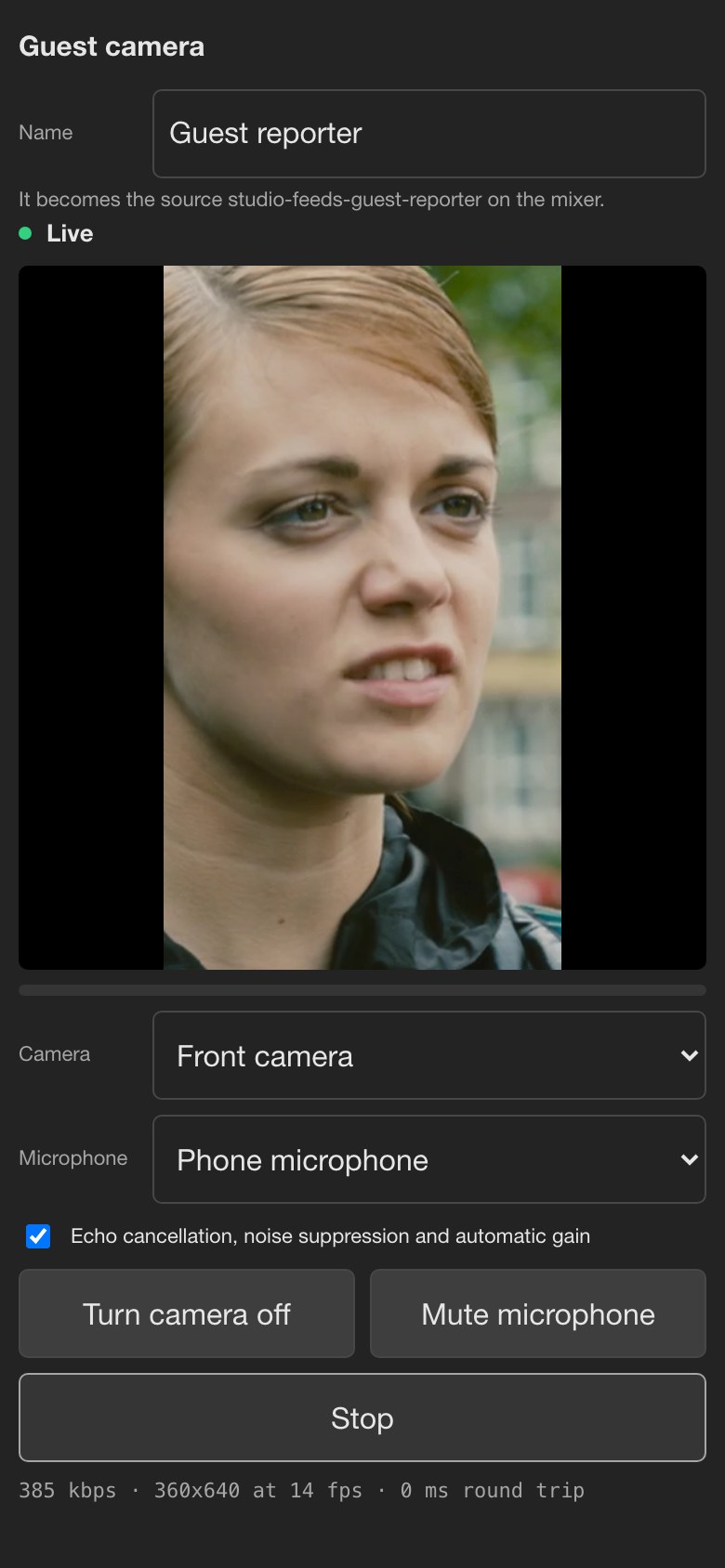
The guest page on a phone, showing Live, the camera picture and a Stop button

Guests by link, phones as cameras

A guest opens a link in their browser and is live with nothing to install. A phone in the room becomes another camera when someone scans a code on the desk. Each phone gets its own name and can flip between its front and back camera.

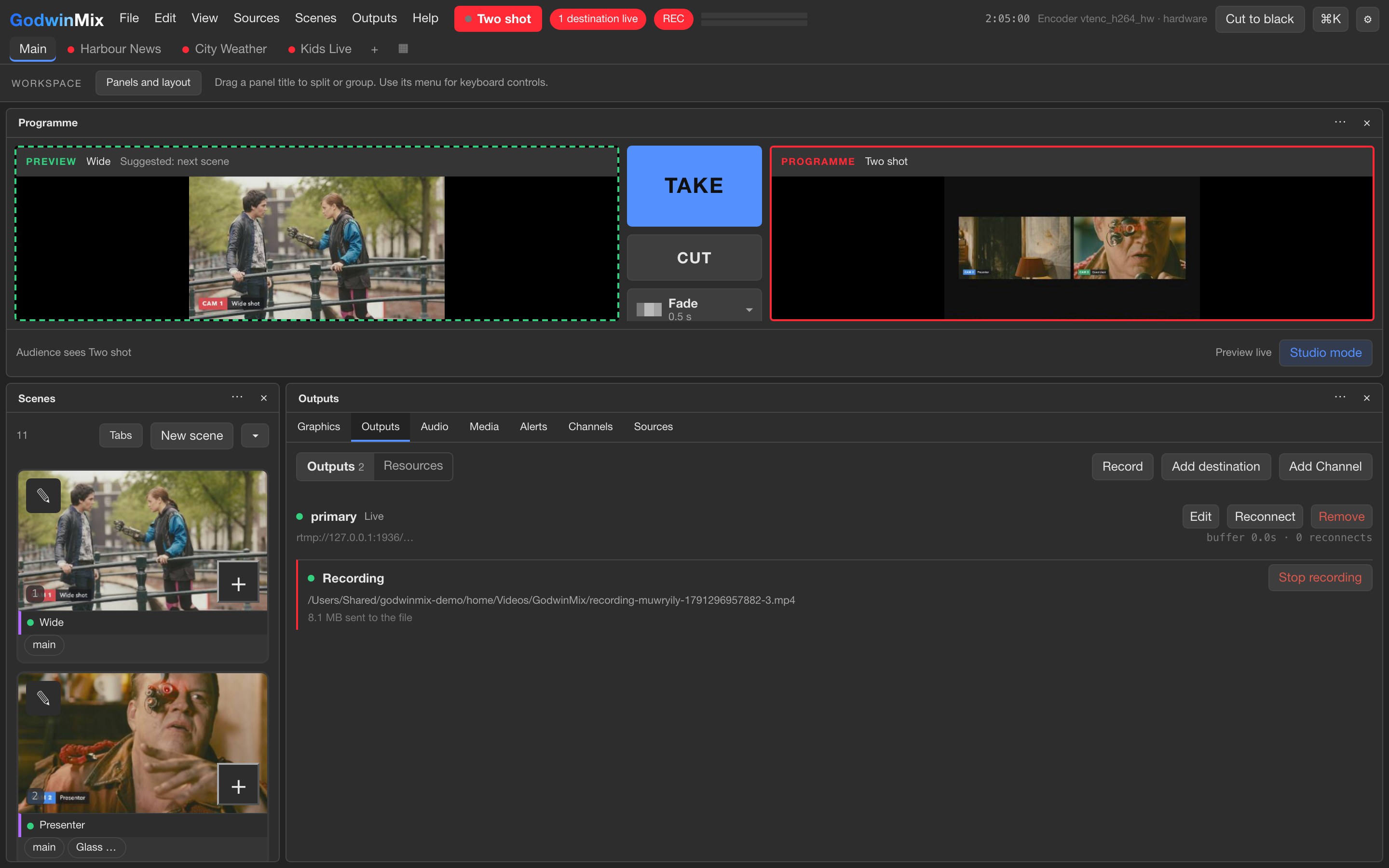
The outputs panel with a live destination and a recording, each with a green light

The picture does not freeze

If a camera dies, viewers see a clean black picture in its place and the stream carries on, with every destination still connected. When the camera comes back you take it again. A destination that drops reconnects by itself and the others never notice.

The top of the desktop app showing two destinations live, recording, and one other person signed in

From a tablet, or with a helper

The desk works by touch with large targets, so a tablet or phone can run the show. Scan a code from the desktop app and that device signs in with its own access, which you can take back at any time. Two or three people can work the same show, each with their own undo.

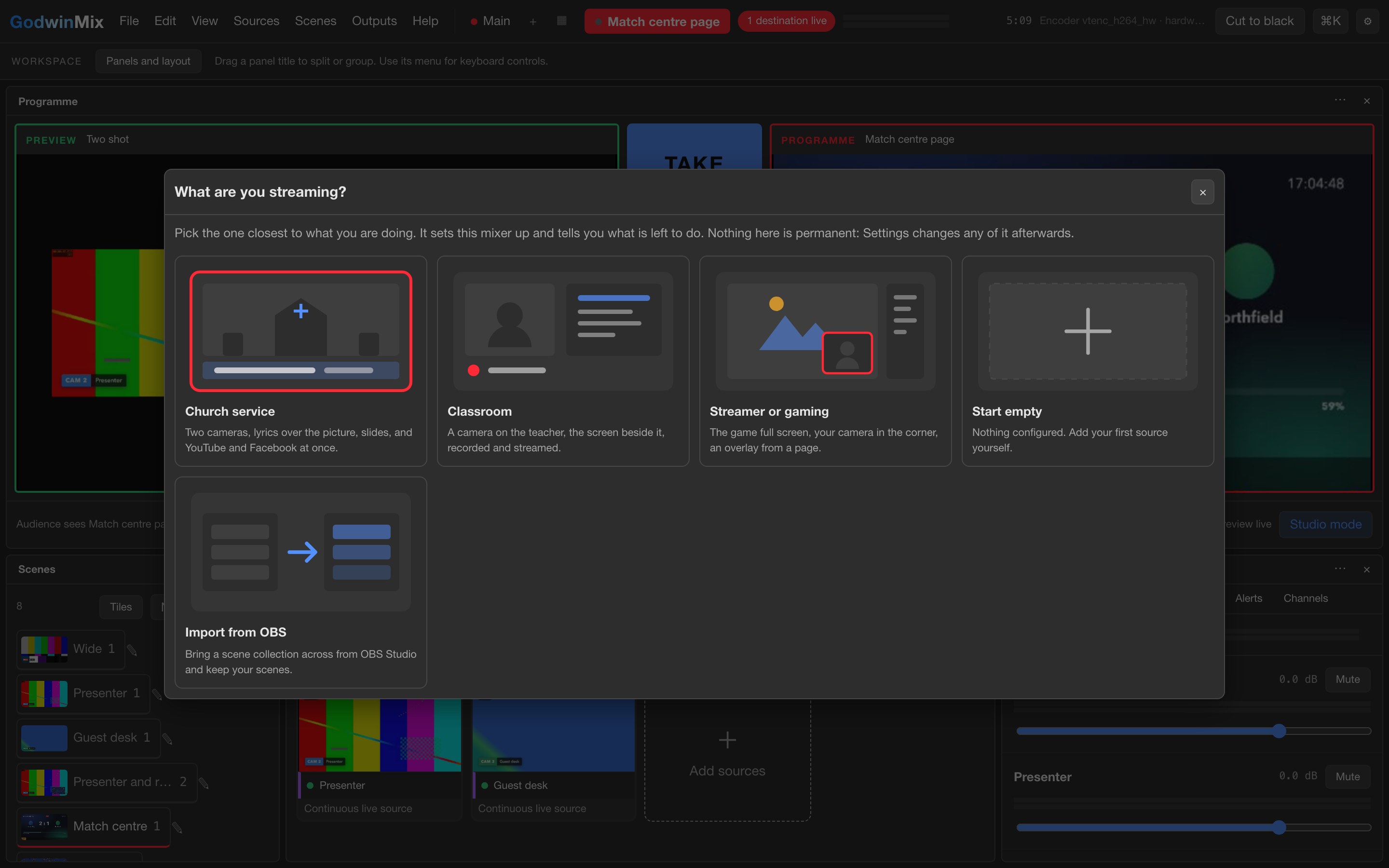
The first run screen asking what you are streaming: church service, classroom, streamer or gaming, start empty, or import from OBS

Ready made starting points

Presets set the desk up for a church service, a classroom, an esports match, a broadcaster's feed or a channel that runs by itself. The church preset gives you the scenes, two destinations and a red button to go live, and a church already streaming can move across in an afternoon.

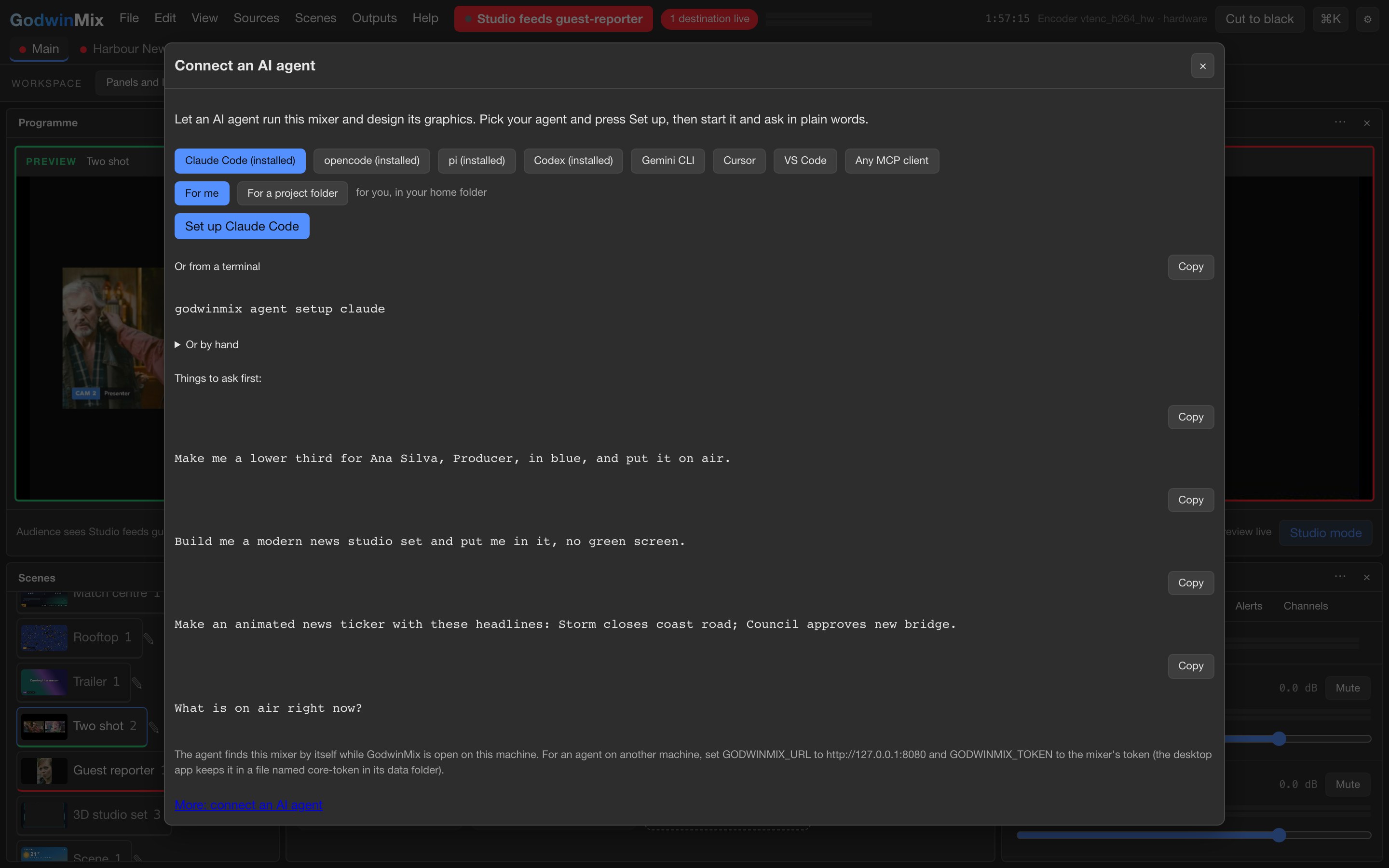
The Connect an AI agent window with buttons for Claude Code, opencode, pi, Codex, Gemini CLI, Cursor and VS Code

A script or an AI agent can drive it

Everything you can do with the mouse, a script can do too, and so can an AI assistant once one button has connected it. Ask it in plain words for a name strap or a change of shot. The desk holds an agent to at least eight seconds per shot, so it cannot flicker between cameras.

See it in use

Five short films, each one a real show on the desk

Each film is narrated and runs a few minutes or less. They were recorded from the product itself, with demo footage standing in for your cameras.

Film 1

A Sunday service

The church setup from start to finish: two cameras, the lyrics over the picture, and the service going to YouTube and Facebook while it records. Watch what the people at home see when a camera stops sending in the middle. The stream carries on, and the camera is taken back when it returns.

Film 2

A guest joins from a phone

A guest opens a link, chooses a camera and a microphone, and presses Go live. On the desk they arrive as one more source, ready to be taken to air. No account and no app for the guest, which matters when the guest is seventy and joining from a kitchen table.

Film 3

Graphics and a studio set

The graphics gallery in use. A name strap goes over a camera and its words are changed while it is on air, then a camera is placed inside a ready made studio set. Nothing here needed a designer or a separate graphics machine.

Film 4

A lesson or a match

The same desk set up for a school or a sports club: a teacher's camera with the screen beside it, or a pitch with a live score on the picture. A preset does the setting up, and the recording is there at the end for anyone who missed it.

Film 5

Run by a script or an AI agent

The desk taking instructions from something other than a mouse. An AI assistant reads what is on air and changes the shot when asked in plain words, and the desk refuses a second change that comes too soon. This suits a channel that runs on a server through the night, though we do not recommend leaving one unwatched yet.

More recordings

Shorter silent recordings of single tasks, made earlier from the same desk.

Take and an advert breakTwo shots are taken, a ten second spot rolls, and the programme returns to the camera by itself.
Add a web pageA page is added to a new scene from the chooser, comes live and is taken to air.
A lost cameraA second destination and a recording start, then a camera stops sending. The picture goes clean black, the destinations stay up, and the camera returns.
Driven by typed commandsEach command takes a scene with a different transition, the way a script or an agent would.
The tour

A morning at the desk, in screenshots

Ruth is the volunteer from the problem above. Ade produces for her church and, on Saturdays, for the football club. Click any picture to see it full size; the arrow keys move through them and Escape closes.

At the desk

8 screens
At the deskStudio modeRuth lines up the next shot in Preview, on the left with the green edge. The audience only sees the right hand side, edged in red, and nothing changes there until she presses Take.
At the deskPreview is never emptyWith nothing lined up, Preview offers the scene Ruth most likely wants next and labels it Suggested. One press on Take puts it on air.
At the deskEvery scene shows a live pictureRuth's scenes sit as tiles with moving pictures. She can see what the wide shot is doing before she takes it, so there is no guessing.
At the deskEvery transition in one listFade, wipe, slide, zoom and dip are built in, and packs add film burns, glitches and light leaks. Ade picks half a second once and every Take uses it.
At the deskSound for every sourceEach camera, clip and page with sound gets a fader and a mute button on one desk. The preacher's microphone comes up while the music page goes down.
At the deskClips and an advert breakAde uploads the club sponsor's clip from his browser. At half time he presses Roll ad, the clip plays, and the programme comes back to the pitch camera by itself.
At the deskStart from a presetA new desk asks what you are streaming. Church service gives Ruth two cameras, lyrics over the picture and both destinations, and tells her what is left to do. Teams coming from OBS can bring their scenes across.
At the deskThe same desk as an appOn the laptop at the back of the hall it runs as an ordinary app window on Windows, macOS or Linux. Here two destinations are live, it is recording, and the top bar shows one other person signed in.

Graphics and scenes

6 screens
Graphics and scenesAdd anything from one placeCameras, screens, microphones, clips, text, graphics, web pages and other streams all come from the same chooser. The lyrics live on a website, so Ade picks Web pages.
Graphics and scenesA web page becomes a pictureHe pastes the address of the lyrics page and names it. A real browser draws the page, sound and all, and it can sit over a camera like any other layer.
Graphics and scenesArrange a sceneAde drags a second picture into the corner, sizes it, and checks it against the safe area. The draft shows in Preview, and nothing reaches the audience until he presses Apply.
Graphics and scenesThe graphics galleryName straps, tickers, score bugs, countdowns and backgrounds sit as cards. Ade adds one to a scene, takes it live, or edits its words. There is also a button to have an AI agent make a new one.
Graphics and scenesA name strap on airA moving strap sits over the camera with soft edges, so the picture shows through behind it. Ade fixed a spelling while it was still on air.
Graphics and scenesA studio set without a studioA camera placed inside a ready made 3D set from the gallery, in one press. With a green screen, or with no screen at all, a presenter can be cut out and put in front of a new background.

Going out

2 screens
Going outPick a destinationEach platform in the list comes with a line saying where it hides the stream key. Ruth pastes the YouTube key once, then the Facebook one, and neither is shown on screen again.
Going outStreaming and recording togetherEach destination has its own line, with its state and a Reconnect button, and the recording grows beside them. If one destination has trouble, the others carry on.

Guests

3 screens
GuestsA guest opens a linkRuth sends the visiting speaker a link. He opens it on his phone, types his name, picks a camera and microphone, and sees himself. There is nothing to install.
GuestsThe guest is liveHe presses Go live and the page says so. If his connection drops, the page keeps trying by itself.
GuestsThe guest on the programmeOn the desk his phone arrives as one more source. Ruth takes it to air like any other camera.

Keeping watch

3 screens
Keeping watchA show that stoppedOne machine can run several shows. When a feed stops, its tile turns red and says how long it has been stalled, so nobody learns about it from a viewer's text message.
Keeping watchEvery show at a glanceThe same wall as a list. Each show has its picture, what is coming in and whether anything is wrong. All four are fine this morning.
Keeping watchRoom left on the machineBefore Ade adds another camera, the desk shows how much of the machine is in use and how much is kept free. If it runs short while on air, the previews give way first and the programme never does.

Agents and automation

3 screens
AgentsConnect an AI agentOne button sets up Claude Code, Codex, Cursor or another assistant to work the desk. Then you ask in plain words: "Make me a lower third for Ana Silva, Producer, in blue, and put it on air."
AgentsWhat the agent seesEvery source in one labelled picture, small enough that it costs an AI model very little to look at. The desk still holds the agent to at least eight seconds a shot.
AutomationRun from a scriptThe same desk from a command line. One command shows what is on air, every source, and both outputs with no reconnects; another takes a shot.
Who it is for

Nine kinds of show, and what each one would still need

Each one starts from a ready made preset. We say plainly what is missing, because you will find out anyway.

A Sunday service

Preset: church
The situation
A volunteer team streams the service: two cameras, lyrics and sermon slides over the picture, YouTube and Facebook at once.
What you get
Four scenes, both destinations and a red button to go live. Phones become extra angles by scanning a code. If a camera dies mid sermon, both destinations carry on with a clean picture.
Still missing
Moving see through graphics have only run on Windows so far. We would not leave a service running with nobody at the desk yet.

First stepApply the preset on the machine you already use, add your two stream keys, and stream a rehearsal to an unlisted YouTube event.

A classroom lesson

Preset: classroom
The situation
A teacher wants every lesson recorded and streamed from the laptop already in the room.
What you get
The teacher's camera, the screen and slides, with a recording and a stream. The picture size is chosen to be kind to a laptop on battery.
Still missing
Picture size is fixed once the desk is running, so choose before the first lesson. Screen capture takes a whole display or a region of it, never a single window. Nobody has measured it on a plain laptop yet.

First stepRecord a ten minute test lesson on the room laptop and watch it back on the projector before term starts.

An esports match

Preset: esports
The situation
A tournament with four player screens, a caster on camera, a score on the picture and one destination.
What you get
A four way view, quick cuts to one player, picture in picture, a moving score bug and stinger transitions between scenes.
Still missing
No instant replay, and no game capture on Windows, so player screens must arrive from the player machines over the network. Four full HD feeds want a network switch of their own. If replay matters to you, this is the wrong tool for now.

First stepSend one player machine to a test box and check the picture holds steady before committing to four.

A broadcaster's contribution feed

Preset: broadcast
The situation
A broadcast engineer brings two venues into a studio over the internet and sends one clean feed onward, with tally lights on the cameras.
What you get
Two venues in, the studio camera on the local network, a main and a backup path out, tally, and control from a hardware button panel. A failed backup path never touches the main one.
Still missing
The button panel support ships as a separate module. Capture cards for SDI and HDMI exist in the code but have never met a real card. A chain that matters needs a proper test period.

First stepPoint one venue at a test box for an afternoon while we watch the link together.

A channel run by an AI agent

Preset: headless-agent
The situation
A company wants a channel that runs around the clock on a server, with an AI choosing between a page and a standby page.
What you get
No screen needed. The agent sees what is on air and a small labelled picture of every source, and the desk enforces rules it cannot argue with, such as a minimum shot length.
Still missing
The long running acceptance tests are not finished, and an unattended channel is exactly what they are for. The AI model's costs are yours, paid to its vendor.

First stepRun it on a test server for a week to a private destination and read the log each morning.

A conference with remote guests

Preset: default
The situation
An event producer has speakers in the room and guests joining from home.
What you get
Guests join from a browser with nothing to install, phones in the room become cameras, and name straps are edited on the fly. Two or three people can work the desk at once.
Still missing
A guest link carries the channel's key until personal invites exist, so treat it as a password and change it afterwards. Guests on outside networks need the desk on a secure web address. There is no confirmed talkback to guests.

First stepA rehearsal a week before, with two guests on outside networks, from the venue's own connection.

A company town hall

Preset: classroom
The situation
A quarterly all hands: a stage camera, slides, an executive dialling in from home, and an audience of staff only.
What you get
The executive joins from a browser, with the home office replaced by a clean background and no green screen. The desk can serve the stream to staff itself, behind viewer keys, and records a file you can publish afterwards.
Still missing
There is no hosted service, so your IT team hosts it on a secure address. On Linux the installer cannot serve staff directly yet; the container version is the route there.

First stepAsk IT where it can live, then run a 15 minute internal test with one remote speaker.

A sports club at the pitch

Preset: church or default
The situation
A club volunteer streams Saturday matches from the touchline to YouTube and Facebook.
What you get
Phones as cameras, a live score on screen that updates itself from a data feed, both destinations at once, and the whole desk run by touch from a tablet. The sponsor's clip rolls at half time and the camera comes back by itself.
Still missing
A reliable connection at the pitch, which is usually the hard part. There is no instant replay.

First stepStream a training session from two phones to an unlisted YouTube event and watch it back.

Intended pairing

A GodwinOTT channel fed by GodwinMix

Preset: default
The situation
A client runs GodwinOTT for its viewers and wants one channel to be a produced programme rather than a straight feed.
What you get
GodwinMix makes the programme and hands it to the GodwinOTT box, where it becomes a channel like any other, with its guide entry and access rules. When a camera fails, the channel keeps receiving a clean picture.
Still missing
This is a design, not a tested setup. Each product has been tested on its own, never the two together. Only one picture shape at a time, so no vertical and horizontal versions together.

First stepA one day joint test on a private domain, with a camera pulled and the connection cut on purpose.

What has been measured

The promise is a steady picture, so that is what was tested

These results come from the project's own checks, run against two independent test servers standing in for YouTube. The test pictures were made and measured by separate tools that share nothing with GodwinMix.

30 a second

Through every switch between cameras, the stream held exactly 30 frames a second with no gap. The receiving server logged one connection and no disconnects.

2 of 2 down

With both cameras dead, the programme stayed live and showed a clean black picture. It did not freeze and it did not drop.

5 seconds

The receiving server was switched off for 15 seconds. The stream was live again 5 seconds after the server came back, with no one touching the desk.

240 of 240

An advert break played every one of its 240 frames and came back to the camera by itself. A scheduled break started within a fraction of a single frame of its time.

These have not yet been measured against YouTube's or Facebook's own servers. The technical overview has the full table of results.

How it compares

Against the tools you probably know

GodwinMix cells come from its own code and records. The other columns are our general knowledge of those products and were not checked against each vendor's site for this page, so confirm anything that decides your choice.

Swipe the table sideways to see every product

What you care aboutGodwinMixOBS StudiovMixWirecastA hosted cloud switcher
Where it runsYour computer, or a server with no screenYour computerYour Windows computerYour Windows or Mac computerThe vendor's servers, through a browser
Several destinations at onceYes, each kept apart from the othersWith plugins or newer versionsYesYesUsually
When a camera diesA clean black picture, stream stays liveDepends on how scenes are set upDepends on setupDepends on setupVaries
Phones as camerasScan a code, nothing to installThrough third party appsThrough its own toolsThrough its own toolsUsually in the browser
Guests from a browserYes, by linkThrough third party toolsYesYesUsually a core feature
Run from a phone or tabletYes, by touch, with access you can take backRemote apps existRemote control existsLimitedIn the browser
Run by an AI agentYes, with one button setup and safety rulesNot built inNot built inNot built inSome offer AI features
Instant replayNoSaves the last few moments onlyYes, in higher tiersYes, in higher editionsVaries
Capturing a game on WindowsNoYesYesYesNot applicable
PriceFree and open source, no accountFree and open sourcePaid licence tiersPaid licenceMonthly subscription
Where your video goesFrom your machine to your destinationsYour machineYour machineYour machineThrough the vendor
MaturityYoung. First installers published 5 October 2026Mature, huge user baseMatureMatureMature products exist
OBS Studio is better

when one person runs a desktop show that includes games or desktop apps, and you want the biggest pool of tutorials and people who already know it. If your volunteers know OBS and Sundays go well, keep it.

vMix is better

for a staffed Windows desk that needs instant replay, a mature title designer and many capture cards. Sports and event companies with a dedicated operator do well with it.

Wirecast is better

for a team that wants a mature, supported product on Mac as well as Windows, with a vendor to phone.

A cloud switcher is better

when you have no machine you want to look after and every guest is remote. Your video passes through the vendor, and the monthly bill grows with use.

GodwinMix is better

when the desk should live on a server and be run by a phone, a script or an AI agent, when the show has to survive a dead camera without anyone touching it, and when you want no vendor between you and your viewers.

How mature it is

GodwinMix is younger than all of these. Its first installers were published on 5 October 2026 and the current version is 0.2.1. The project does not yet claim to match OBS, vMix or Wirecast in production, and its long running endurance tests are still outstanding, so we do not recommend it yet for shows nobody is watching. Studio mode and the suggested preview, the graphics gallery and the one button agent setup shown on this page are on the main line of the code but not yet in a tagged release. For a staffed desktop production today, the three desktop products above are the safer choice.

How an engagement goes

The size of the job depends on your show far more than on the software

Three typical sizes. All of them are our estimates, and the first thing we do in any of them is try GodwinMix on the machine you plan to use.

Church already streamingAn afternoon

Half a day, on site or remotely. We apply the church preset, put in your stream keys, connect your cameras, add phones as extra angles and set the lyrics over the picture. Then a test stream to an unlisted event, and we show your volunteer the red button.

School, club or conferenceAbout a week

Three to five working days spread over two weeks. We fit the nearest preset to your rooms and kit, set up recording, graphics and a score feed if you need one, and run two or three rehearsals. Two or three of your people get trained, and you get a one page run sheet.

Broadcaster or unattended channelA month or more

Four weeks and up, for a broadcaster's contribution chain, a channel run by an AI agent, or a bespoke plugin. We design it with your engineers, test the links and tally with your equipment, run long tests on your hardware, and agree what happens when something fails at 3 a.m. Part of that month is simply waiting and watching.

What you supply

  • A machine to run it on: a desktop or laptop for a staffed show, or a Linux server for one with no screen.
  • Your cameras, or phones to use as cameras.
  • Your destinations and their stream keys. Once entered, a key is not shown again, and we never need to see it.
  • An internet connection with enough upload. That is usually the limit.
  • For guests on outside networks, a web address for the desk with a certificate, which we can set up with your IT team.
  • People to train, and time for rehearsals.

Hardware, in plain words

A graphics card helps but is not required; the desk uses one if it finds one. On a recent Mac, two cameras with the stream going out used less than one processor core. Full HD at 60 frames a second without a graphics card is more than a laptop can manage, so drop to 30 or use a stronger machine. Smaller machines such as a Raspberry Pi or a basic laptop have not been measured, which is why we test on yours first.

It runs on Windows, on macOS with Apple Silicon, and on Linux, as a desktop app or on a server.

The licence

GodwinMix itself is free. It is open source under the Apache License, Version 2.0 (January 2004), as stated in the project's LICENSE file. There is no hosted service and no account: it is a program you run on your own machine. There is no licence fee to us or to anyone else for the mixer.

Some parts that travel with it carry their own terms. The Windows installer includes the NDI runtime on the NDI SDK's terms, and the licence files of the open source media framework and browser engine it uses travel with the installers.

What it costs

You pay for your own machine and your connection. You pay us for the work around the software: choosing and applying the preset, setting up your sources and destinations, testing on your machine and network, training your people, and building anything new such as a plugin, a graphics package or a build under your own name.

Our fees are quoted per engagement after a short call. If an AI agent directs your show, its model costs are paid by you directly to the AI vendor.

Questions

Five questions people ask first

What does it do?

It mixes your cameras, phones, guests, clips and web pages into one live programme and sends it to YouTube, Facebook and other destinations at once, recording as it goes. A person presses Take, or a script or AI assistant does.

Who uses it?

Churches, schools, sports clubs, event producers, broadcast engineers, and companies that want a channel run by software. It is young, so today it suits people who are happy to be early.

What does it cost?

The software is free, with no account. You pay for your own machine and connection, and for our time if you want us to set it up, train your people or build something. We quote that per engagement.

When can we go live?

A church already streaming can switch in an afternoon. A school or club with training takes about a week. A broadcaster's chain or a bespoke plugin takes a month or more.

How is it safe?

The stream does not drop when a camera or a destination does. Phones and agents sign in with access you can take back, stream keys are never shown again, and your video goes from your machine to your destinations and nowhere else.

More questions

What happens if a camera cable is pulled during the show?

That camera's picture goes and a clean black picture shows in its place. The stream keeps running and every destination stays connected. When the camera is plugged back in it restarts in about two seconds and you can take it again.

What if our internet drops for a moment?

The desk holds 5 seconds of the stream and reconnects each destination by itself, in about 2 seconds for a single dropped connection. In testing, with the receiving server off for 15 seconds, the stream was live again 5 seconds after it returned. It has not yet been measured against YouTube's own servers.

Can volunteers run it?

That is what the church preset is for: a few scene tiles and a red button to go live, usable by touch on a tablet. We would still train them and run rehearsals first.

Can more than one person operate at once?

Yes. Each person has their own undo, and if one person's undo would overwrite somebody else's later change, the desk refuses it and says who made that change.

Can it play an advert and come back by itself?

Yes, straight away or at a set time, and it returns to the camera on its own. In testing a scheduled break started within a fraction of one frame. If the clip file is missing the break is refused and the programme is left alone.

We already use OBS. Can we bring our scenes across?

Yes. Drop in an OBS scene collection and the desk tells you what it could not bring. GodwinMix is not affiliated with the OBS Project.

Can we leave a channel running overnight with nobody watching?

Not yet, on our advice. The project's long running acceptance tests are still outstanding, and until they finish we keep someone watching.

What if the project stops?

The code is open source under Apache 2.0, so you can keep using it, change it, and have someone else maintain it. The project has also promised that its control commands will not break without a year of overlap.

Honest scope

What GodwinMix does not do today

Better that you read this now than discover it during a service.

Not availableWhat it means for you
Proven parity with OBS, vMix or WirecastNot claimed. The long running and cross platform endurance tests are still outstanding.
Shows with nobody watchingNot recommended until those tests finish.
Instant replayThere is none.
Game capture on WindowsNot in the first year. Screen capture takes a whole display or a region of it.
Vertical and horizontal at onceOne picture shape at a time, so you cannot send an upright version to TikTok and a wide one to YouTube at the same time.
A hosted serviceYou run it on your own machine. There is no account and nothing to log in to.
Personal guest invitesA guest link carries the channel's key until invites exist. Treat it as a password and change it after the event.
Sound on stinger transitionsA stinger's own sound is dropped today.
Moving graphics and transition packs on Mac and LinuxThey have run on Windows only so far.
A complete Linux installerA few media pieces are missing from it, so the container version is the safer route on Linux for now.
Capture cards for SDI and HDMIIn the code, never tried with a real card.
Figures for small machinesNot measured on a Raspberry Pi or a basic laptop. We test on yours.
Newest features in a releaseStudio mode's take bar, the suggested preview, transition packs, the graphics gallery, moving graphics and one button agent setup are on the main line of the code, not yet in a tagged release.

The trade offs you accept

You acceptIn return
A young product with a short recordA desk built around keeping the picture going, with its own failures published openly so you can weigh them.
Looking after your own machineNo subscription, no account, and no company between you and your viewers.
Your IT team's time for outside guestsGuests who join from a browser with nothing to install.
Paying an AI vendor if an agent directsA show that can run from a server, with the desk enforcing the safety rules.
Testing a feature on your platform firstWe find out in the first days, before you rely on it.

For your engineer

One Rust binary on GStreamer serving one HTTP port; it is also the CLI and the MCP server. The encoder starts once and every take happens upstream on raw frames, so RTMP outputs never reconnect across takes. Each source and each output runs in its own pipeline, so a failure stays local, and a black slate and silence sit permanently under the compositor. Out: RTMP and RTMPS, SRT, RIST, WHIP, NDI, and HLS, LL-HLS or DASH with an ABR ladder. The API has 215 methods. Docker image and systemd unit for servers.

Technical overview (PDF)

With GodwinOTT

Make the programme here, deliver it to your own viewers there

GodwinMix produces the show. GodwinOTT puts channels in front of viewers on the web and on phones, under your own name, with a guide, accounts and paid access if you want it. A channel made in GodwinMix would arrive at GodwinOTT like any other channel. The two were designed to fit and have each been tested on their own; they have not yet run together end to end, so a one day joint test comes first.